Guides for SE student projects »
This is a WIP community resource, containing contributions from community members.
- If you notice any bugs or have suggestions for improvements, please report at https://github.com/se-edu/guides/issues
- You are welcome to contribute by sending a PR to https://github.com/se-edu/guides/pulls too.
Using Codex in the ChatGPT Desktop App
Codex is an AI coding agent that can inspect a project, edit files, run commands, review diffs, and help you iterate on a task while you stay in control of the final code. Codex now lives in the ChatGPT desktop app as a separate view for software development work.
Unlike IDE plugins such as Copilot or Windsurf, Codex works through a standalone desktop app. The IDE you use does not matter; what matters is that Codex can access the project folder and the project can be built and tested locally.
For official details beyond this short setup guide, refer to the ChatGPT desktop app guide and Codex best practices.
Installing ChatGPT Desktop
- Go to the official ChatGPT download page.
- Download the ChatGPT desktop app for your operating system.
- After downloading, open the installer and follow the installation instructions for your operating system.
- If you already have the old Codex app, update it as usual. After the update, it becomes the new ChatGPT desktop app with Codex included.
Signing in to Codex
- Open the ChatGPT desktop app
- Sign in
Continue to sign inif you are using a school-provided or subscription-based plan.
Sign in another wayonly if you are using an API key.- Follow the sign-in flow shown in the app.
- The ChatGPT desktop app will now be ready to use.
- Select Codex
- Use the top-left menu to switch from
ChatGPTtoCodex.
- Use the top-left menu to switch from
Getting Started with Codex
Creating a Project
- Open the project picker
- Once you are in Codex, use the left menu to select
New chat. From the empty workspace screen, click on the folder iconChoose project.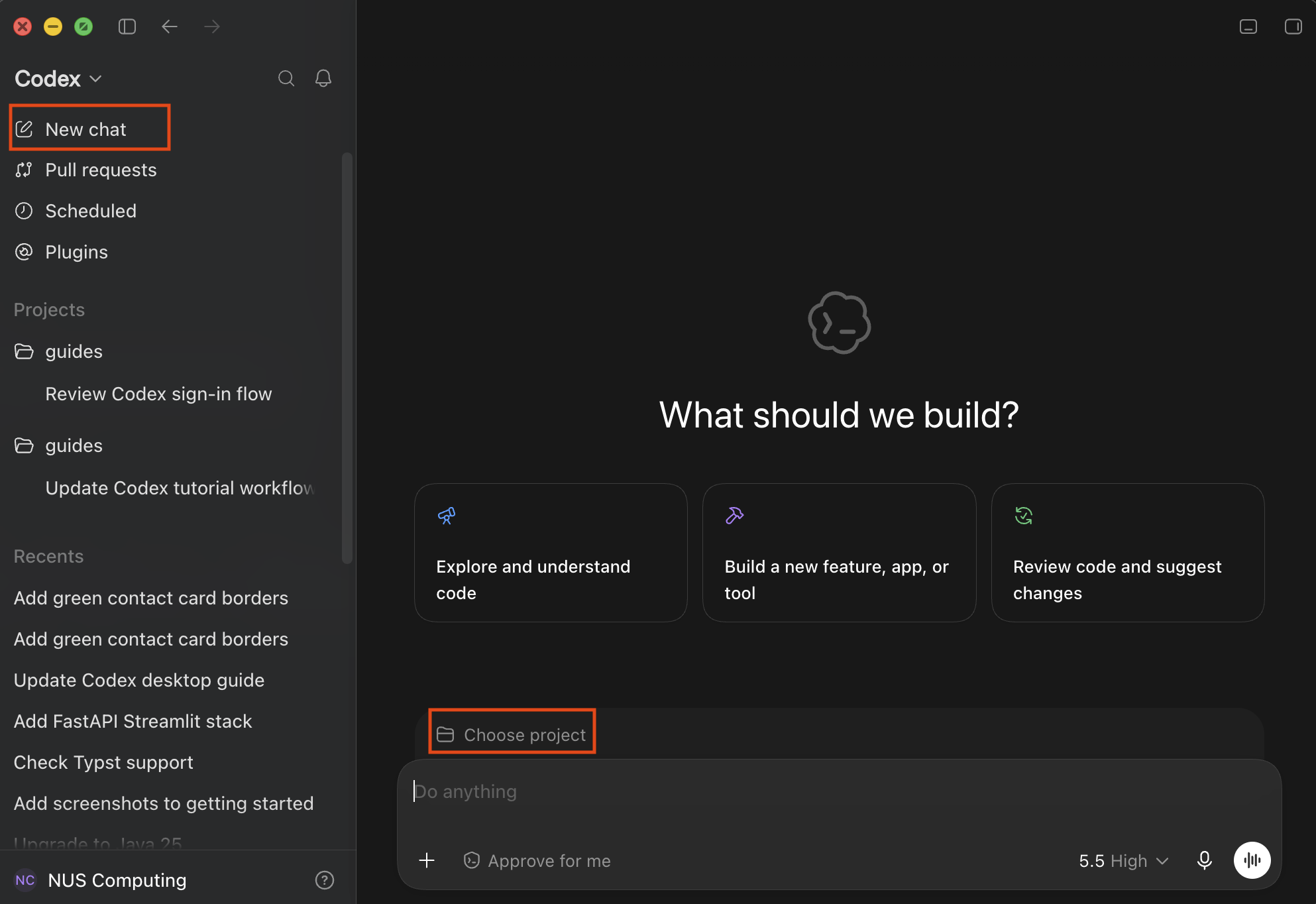
- If this is not your first time using Codex, it will mostly likely be a folder icon with the latest project that you have interacted with. You can click on it as usual to create a new project.
- Choose
+ New project, then click onAdd folders Codex can read and editto select your project.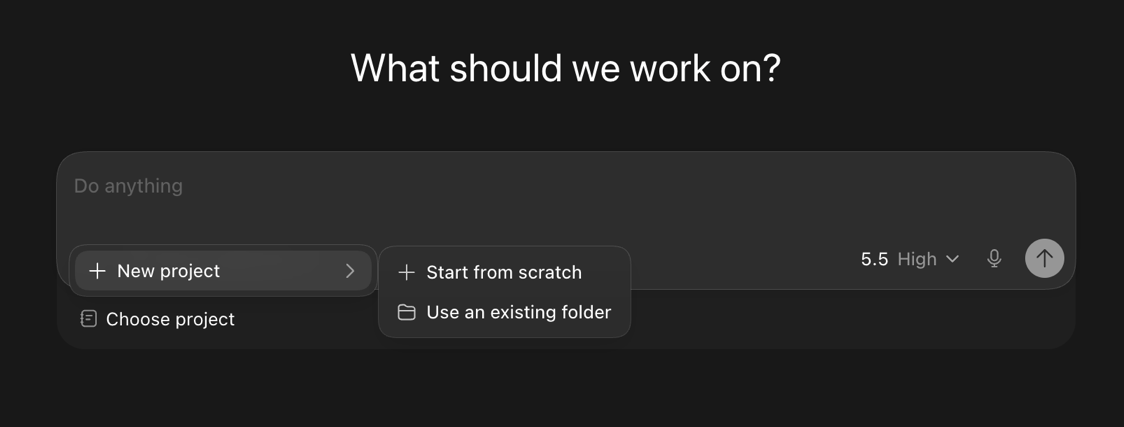
- When you are creating a new project,
Project nameis optional. You can just select the folder that contains your project and clickCreate project.For a project using Git, it is important to select the repository root and not inner folders such as `src`.
- Once you are in Codex, use the left menu to select
Basic Configuration
You do not need to configure everything before using Codex. Start with these basic settings and learn the advanced options later from the official guides.
- Project folder: Make sure Codex is working in the correct repository root, so it can see project files, build files, tests, and Git history.
- Permissions: Start with the default permissions. Codex can work inside the selected project, but it will ask before actions that need broader access. Avoid
Full accessunless you understand what the command will do. See Sandboxing and approvals for details. - Local vs Worktree: For your first small task, start in
Localso you can inspect the change in your normal project folder. For larger experiments, useWorktreeto let Codex work in a separate Git checkout. See Worktrees for details. - Project instructions: If your project has build commands, coding conventions, or review expectations, put them in
AGENTS.mdinstead of repeating them in every prompt. See AGENTS.md for details.
Basic Usage Examples
Use Codex for small, reviewable tasks, such as tweaking a UI component or refactoring a code fragment.
- Start with a small change that you can easily verify.
- For example, you can ask something like
add green borders for each contact card - Codex will summarize the files it changed. Click Review to inspect the diff before accepting the change.
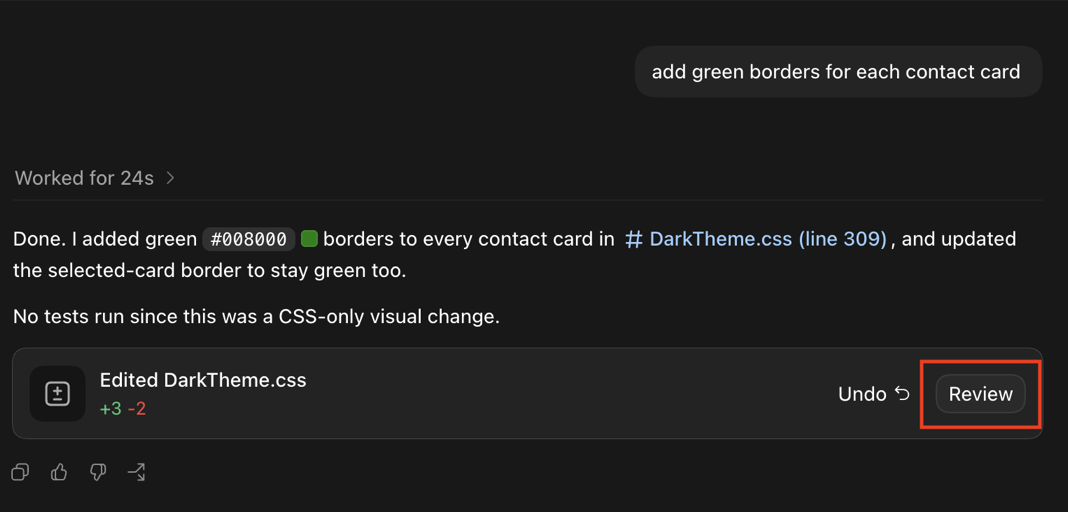
- In the review panel, check the file name and the red/green lines to understand exactly what Codex changed (shown below). Alternatively, you can use your IDE or Git tool to inspect the diff.
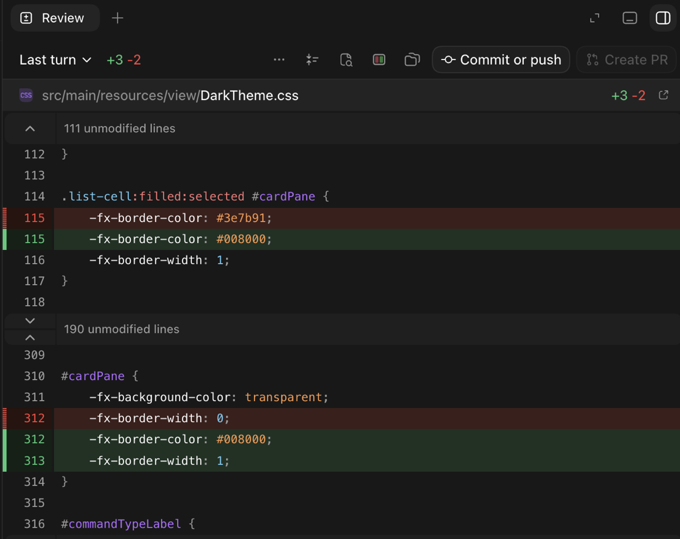
- Ask Codex to run the relevant checks, or run them yourself, before you commit or submit the change.
- Accept only changes that you can explain and maintain.
Where to Go Next
After you are comfortable with the basic workflow, you can refer to these official guides to learn more about using Codex effectively:
- ChatGPT desktop app: Learn the main app concepts and how Codex fits into the desktop workflow.
- Best practices: Learn how to give Codex useful context, keep tasks scoped, and verify its work.
- Prompting Codex: Learn prompt patterns for planning, debugging, refactoring, testing, and review.
- Commands and shortcuts: Learn app shortcuts and slash commands such as
/plan,/review, and/status. - Code review: Learn how to inspect diffs, leave line comments, stage changes, and ask Codex to review a change.
- Worktrees: Learn how to try Codex changes in a separate Git worktree before bringing them back to your main checkout.
- Sandboxing and approvals: Learn how Codex permissions work and when it will ask before running commands or accessing files.
- AGENTS.md: Learn how to give Codex project-specific instructions, such as build commands, coding conventions, and review expectations.
Contributors: Hwang Jihun (@hwangjihun)