User Guide
AddressBook Level 3 (AB3) is a desktop application for managing contacts, optimized for use through a Command Line Interface (CLI) while retaining the benefits of a Graphical User Interface (GUI). If you type quickly, AB3 can help you manage contacts faster than traditional GUI applications.
Quick start
-
Ensure that Java
25or later is installed on your computer.
Mac users: Ensure you have the precise JDK version prescribed here. -
Download the latest
.jarfile from here. -
Copy the file to the folder you want to use as the home folder for your AddressBook.
-
Open a terminal,
cdto the folder containing the JAR file, and runjava -jar addressbook.jar.
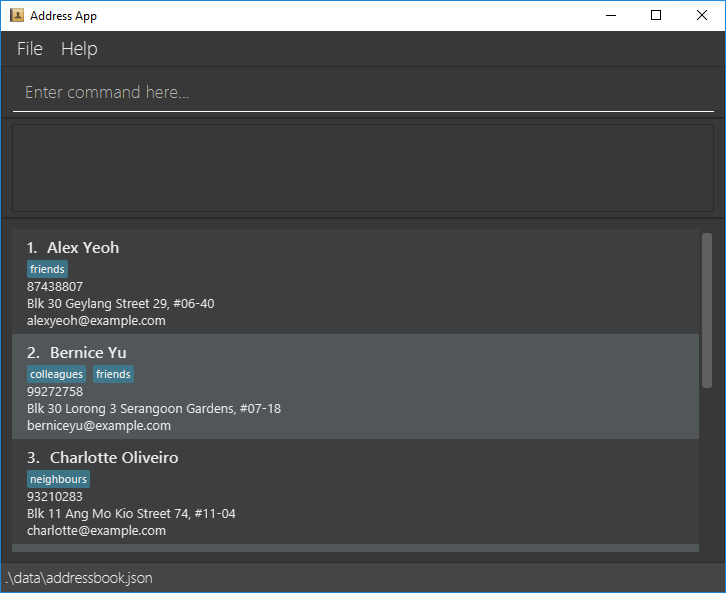
A GUI similar to the one below should appear in a few seconds. Note how the app contains some sample data.
-
Type a command in the command box and press Enter to execute it. For example, type
helpand press Enter to open the help window.
Some example commands you can try:-
list: Lists all contacts. -
add n/John Doe p/98765432 e/johnd@example.com a/John street, block 123, #01-01: Adds a contact namedJohn Doeto the Address Book. -
delete 3: Deletes the 3rd contact shown in the current list. -
clear: Deletes all contacts. -
exit: Exits the app.
-
-
Refer to the Features section below for details of each command.
Features
 Notes about the command format:
-
Words in
UPPER_CASEare the parameters to be supplied by the user.
For example, inadd n/NAME, replaceNAMEwith a value such asJohn Doe. -
Items in square brackets are optional.
For example,n/NAME [t/TAG]can be used asn/John Doe t/friendor asn/John Doe. -
Items followed by
… can appear zero or more times.
For example,[t/TAG]…may be omitted, or written ast/friendort/friend t/family. -
Parameters can be in any order.
For example, if the command specifiesn/NAME p/PHONE_NUMBER,p/PHONE_NUMBER n/NAMEis also acceptable. -
Extraneous parameters for commands that take no parameters, such as
help,list,exit, andclear, are ignored.
For example,help 123is interpreted ashelp. -
If you are using a PDF version of this document, be careful when copying and pasting commands that span multiple lines as space characters surrounding line-breaks may be omitted when copied over to the application.
Viewing help: help
Shows a message explaining how to access the help page.

Format: help
Adding a person: add
Adds a person to the address book.
Format: add n/NAME p/PHONE_NUMBER e/EMAIL a/ADDRESS [t/TAG]…
 Tip:
A person can have any number of tags, including zero.
Tip:
A person can have any number of tags, including zero.
Examples:
add n/John Doe p/98765432 e/johnd@example.com a/John street, block 123, #01-01add n/Betsy Crowe t/friend e/betsycrowe@example.com a/Newgate Prison p/1234567 t/criminal
Listing all persons: list
Shows a list of all persons in the address book.
Format: list
Editing a person: edit
Edits an existing person in the address book.
Format: edit INDEX [n/NAME] [p/PHONE] [e/EMAIL] [a/ADDRESS] [t/TAG]…
- Edits the person at the specified
INDEX. The index refers to the index number shown in the displayed person list. The index must be a positive integer 1, 2, 3, … - At least one of the optional fields must be provided.
- Existing values will be updated to the input values.
- When editing tags, all of the person’s existing tags are removed; adding tags is not cumulative.
- To remove all of a person’s tags, enter
t/without a tag after it.
Examples:
-
edit 1 p/91234567 e/johndoe@example.comEdits the phone number and email address of the 1st person to be91234567andjohndoe@example.comrespectively. -
edit 2 n/Betsy Crower t/Edits the name of the 2nd person to beBetsy Crowerand clears all existing tags.
Locating persons by name: find
Finds persons whose names contain any of the given keywords.
Format: find KEYWORD [MORE_KEYWORDS]
- The search is case-insensitive; for example,
hansmatchesHans. - Keyword order does not matter; for example,
Hans BomatchesBo Hans. - The search considers only names.
- Only full words match; for example,
Handoes not matchHans. - Persons matching at least one keyword are returned (an
ORsearch); for example,Hans BoreturnsHans GruberandBo Yang.
Examples:
-
find JohnreturnsjohnandJohn Doe -
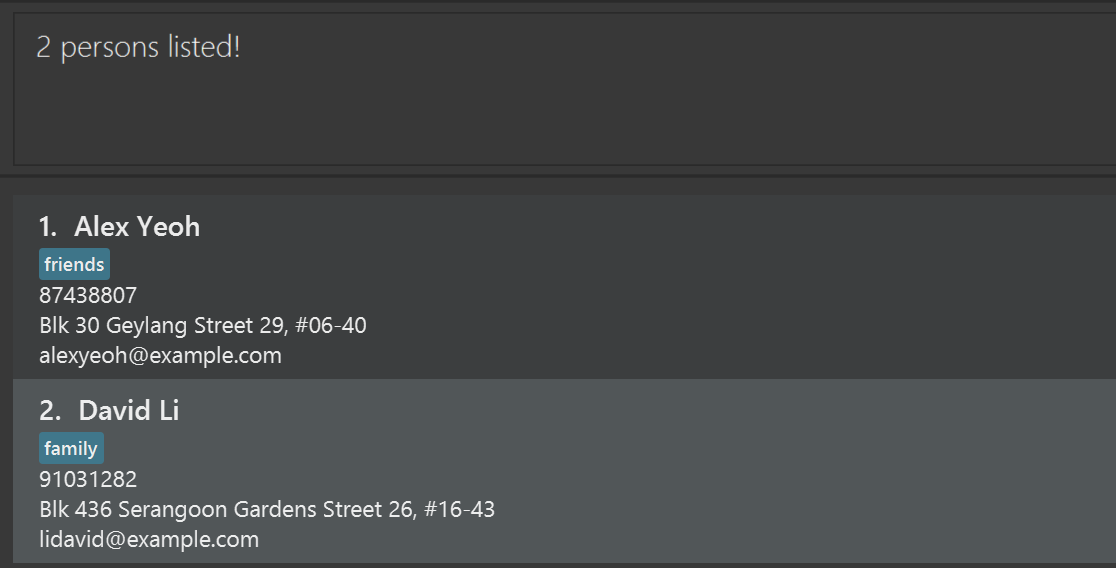
find alex davidreturnsAlex Yeoh,David Li
Deleting a person: delete
Deletes the specified person from the address book.
Format: delete INDEX
- Deletes the person at the specified
INDEX. - The index refers to the index number shown in the displayed person list.
- The index must be a positive integer 1, 2, 3, …
Examples:
-
listfollowed bydelete 2deletes the 2nd person in the address book. -
find Betsyfollowed bydelete 1deletes the 1st person in the results of thefindcommand.
Clearing all entries: clear
Clears all entries from the address book.
Format: clear
Exiting the program: exit
Exits the program.
Format: exit
Saving the data
AddressBook automatically saves data after every command. You do not need to save manually.
Editing the data file
AddressBook data is saved automatically as a JSON file [JAR file location]/data/addressbook.json. Advanced users are welcome to update data directly by editing that data file.
 Caution:
If your changes make the data file invalid, AddressBook starts with an empty address book at the next run. The invalid file remains on disk until you run a command (AddressBook saves after every command). Still, we recommend backing up the file before editing it.
Caution:
If your changes make the data file invalid, AddressBook starts with an empty address book at the next run. The invalid file remains on disk until you run a command (AddressBook saves after every command). Still, we recommend backing up the file before editing it.Furthermore, certain edits can cause the AddressBook to behave in unexpected ways (e.g., if a value entered is outside of the acceptable range). Therefore, edit the data file only if you are confident that you can update it correctly.
Archiving data files [coming in v2.0]
Details coming soon …
FAQ
Q: How do I transfer my data to another computer?
A: Install the app on the other computer and overwrite the data file it creates with the data file from your previous AddressBook home folder.
Known issues
-
When using multiple screens, if you move the application to a secondary screen, and later switch to using only the primary screen, the GUI will open off-screen. The remedy is to delete the
preferences.jsonfile created by the application before running the application again. -
If you minimize the Help Window and then run the
helpcommand (or use theHelpmenu, or the keyboard shortcutF1) again, the original Help Window will remain minimized, and no new Help Window will appear. The remedy is to manually restore the minimized Help Window.
Command summary
| Action | Format, Examples |
|---|---|
| Add |
add n/NAME p/PHONE_NUMBER e/EMAIL a/ADDRESS [t/TAG]… e.g., add n/James Ho p/22224444 e/jamesho@example.com a/123, Clementi Rd, 1234665 t/friend t/colleague
|
| Clear | clear |
| Delete |
delete INDEXe.g., delete 3
|
| Edit |
edit INDEX [n/NAME] [p/PHONE_NUMBER] [e/EMAIL] [a/ADDRESS] [t/TAG]…e.g., edit 2 n/James Lee e/jameslee@example.com
|
| Find |
find KEYWORD [MORE_KEYWORDS]e.g., find James Jake
|
| List | list |
| Help | help |