Guides for SE student projects »
This is a WIP community resource, containing contributions from community members.
- If you notice any bugs or have suggestions for improvements, please report at https://github.com/se-edu/guides/issues
- You are welcome to contribute by sending a PR to https://github.com/se-edu/guides/pulls too.
VS Code - Productivity Shortcuts
This guide introduces several time-saving shortcuts and features in Visual Studio Code that help you code, navigate, and manage your projects more efficiently.
Command Palette
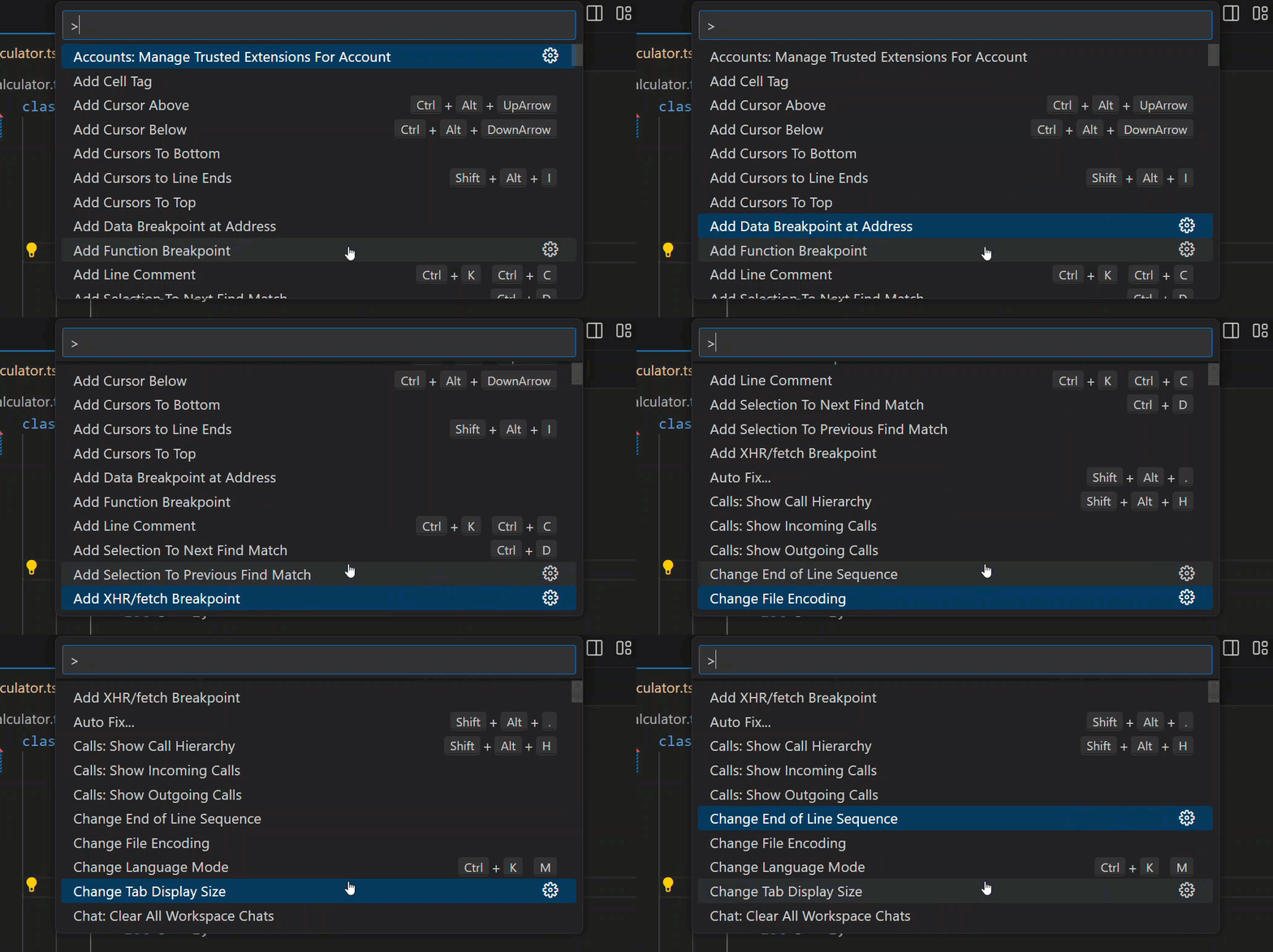
The Command Palette gives quick access to all commands in VS Code without needing to navigate menus. You can use it to run tasks, format code, open settings, manage extensions, and more.
- Open the Command Palette: /
Ctrl+Shift+P|Cmd+Shift+P - Type the command name (e.g. “Format Document”, “Git: Commit”, “Reload Window”) and press
Enter.
Multi-cursor Editing
Multi-cursor editing allows you to place multiple cursors in different positions to edit text simultaneously.
This is useful for renaming repeated variables, editing lists, or modifying multiple lines at once.
- To add another cursor:
- /
Alt+Click|Option+Click
- /
- To select the next occurrence of the current word:
- /
Ctrl+D|Cmd+D
- /
- To select all occurrences:
- /
Ctrl+Shift+L|Cmd+Shift+L
- /
Integrated Terminal
The Integrated Terminal lets you run command-line tools directly inside VS Code, avoiding context switching between your IDE and a separate terminal window.
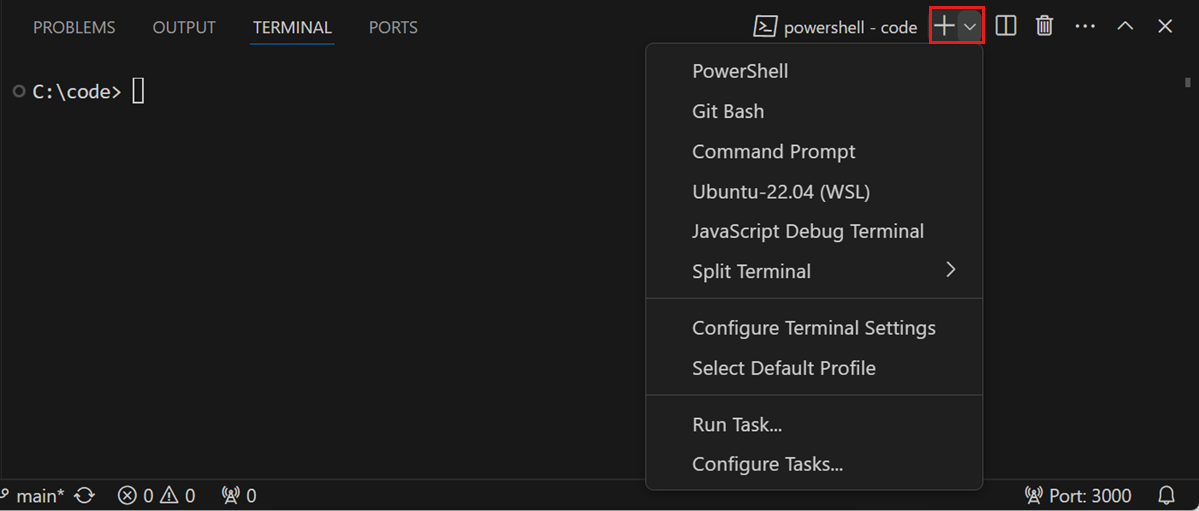
- Keyboard shortcut: /
Ctrl+`|Ctrl+`(macOS usesControl, notCmd, for this one) - Alternatively, /
Ctrl+J|Cmd+Jto open or hide the bottom panel, then select the Terminal tab if it isn’t active.
Faster Editing and Refactoring
These editing shortcuts are especially helpful for quick refactoring, aligning code, and maintaining a clean file layout.
Rename Symbol
Rename variables, methods, or classes easily across the entire project.
Press F2, type the new name, and press Enter.

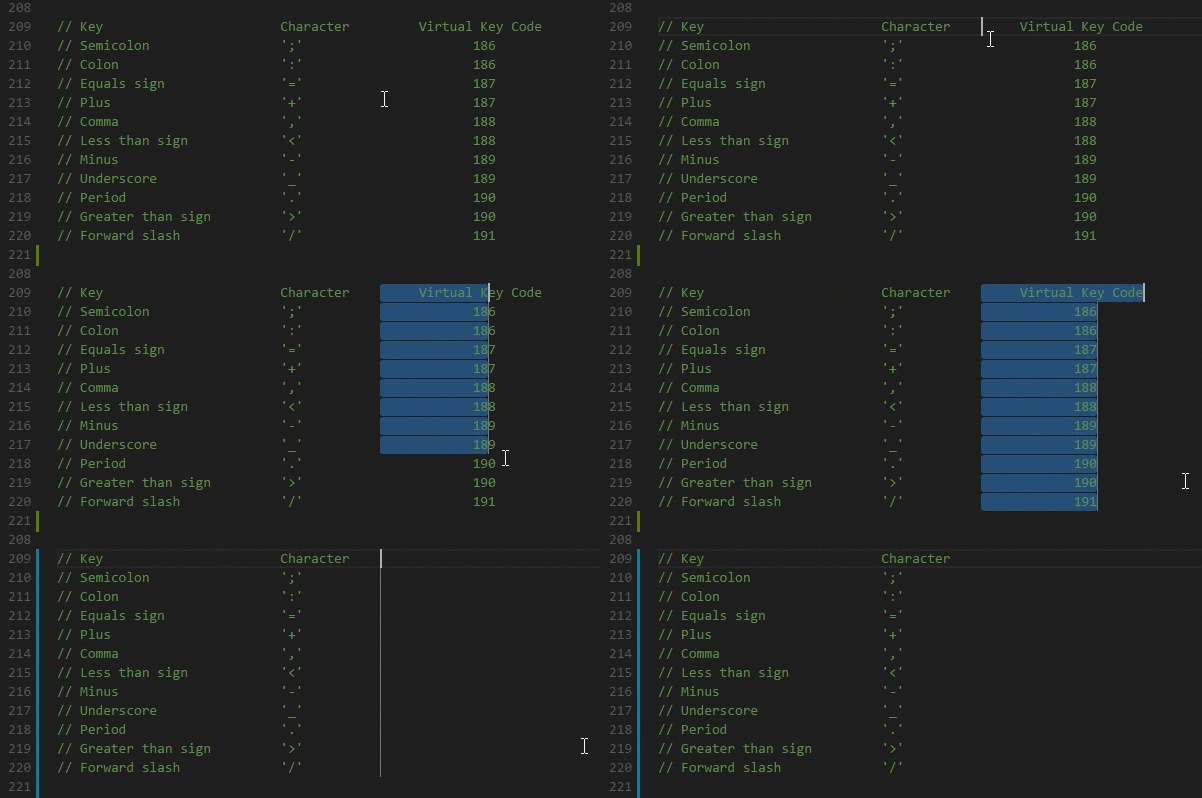
Column (Box) Selection
Select text vertically instead of line by line. This is especially useful for editing tables, columns, or aligned code.
Hold / Shift+Alt | Shift+Option, then drag with the mouse to create a rectangular selection.
Copy or Move Lines
Move or duplicate code quickly without using copy-paste.
- Copy Line Up/Down: /
Shift+Alt+Up/Down|Shift+Option+Up/Down - Move Line Up/Down: /
Alt+Up/Down|Option+Up/Down
Trim Trailing Whitespace
Remove unnecessary spaces at the end of lines to keep your files tidy.
- Keyboard shortcut: /
Ctrl+K Ctrl+X|Cmd+K Cmd+X
Format Code
Automatically fix indentation and spacing so your code stays consistent and readable.
- Format Selection: /
Ctrl+K Ctrl+F|Cmd+K Cmd+F - Format Document: /
Shift+Alt+F|Shift+Option+F
To configure formatting rules or format automatically on save, see the VS Code: Configuring the code style guide.
Toggle Comments
Comment or uncomment code without retyping. This is handy for debugging or testing different code paths.
- Toggle Line Comment: /
Ctrl+/|Cmd+/ - Toggle Block Comment: /
Shift+Alt+A|Shift+Option+A
Workspace Management
You can adjust your VS Code layout quickly to maximize focus or view multiple panels at once.
- Toggle Sidebar: /
Ctrl+B|Cmd+B— Show or hide the Explorer sidebar. - Toggle Bottom Panel: /
Ctrl+J|Cmd+J— Show or hide the bottom panel (Terminal, Output, Problems, Debug Console).
Code Navigation
Jump directly to where a symbol is defined to trace how different parts of a larger codebase connect.
- Go to Definition:
F12, or /Ctrl+Click|Cmd+Click
For more navigation features such as Peek Definition and Go to Super Implementation, see the VS Code - Code Navigation guide.
Navigating Errors and Warnings
VS Code highlights syntax or compilation issues directly in the editor and lists them in the Problems panel.
- Open Problems panel: /
Ctrl+Shift+M|Cmd+Shift+M - Click any entry to jump directly to that line of code.
- Hover over red or yellow squiggles in the editor to view issue details inline.

Markdown Preview
When working on README files or project documentation, VS Code can preview Markdown in real time.
- Open Markdown Preview: /
Ctrl+Shift+V|Cmd+Shift+V

- Open Side-by-Side Preview: /
Ctrl+K V|Cmd+K V

All information, animated GIFs, and images on this page are adapted from the official Visual Studio Code – Tips and Tricks documentation. For more details and additional productivity tips, visit the official site.
Contributors: Jade Cheah (@JadeCheah)